Appearance
1.1.1 Flowing Waters
📝 Summary
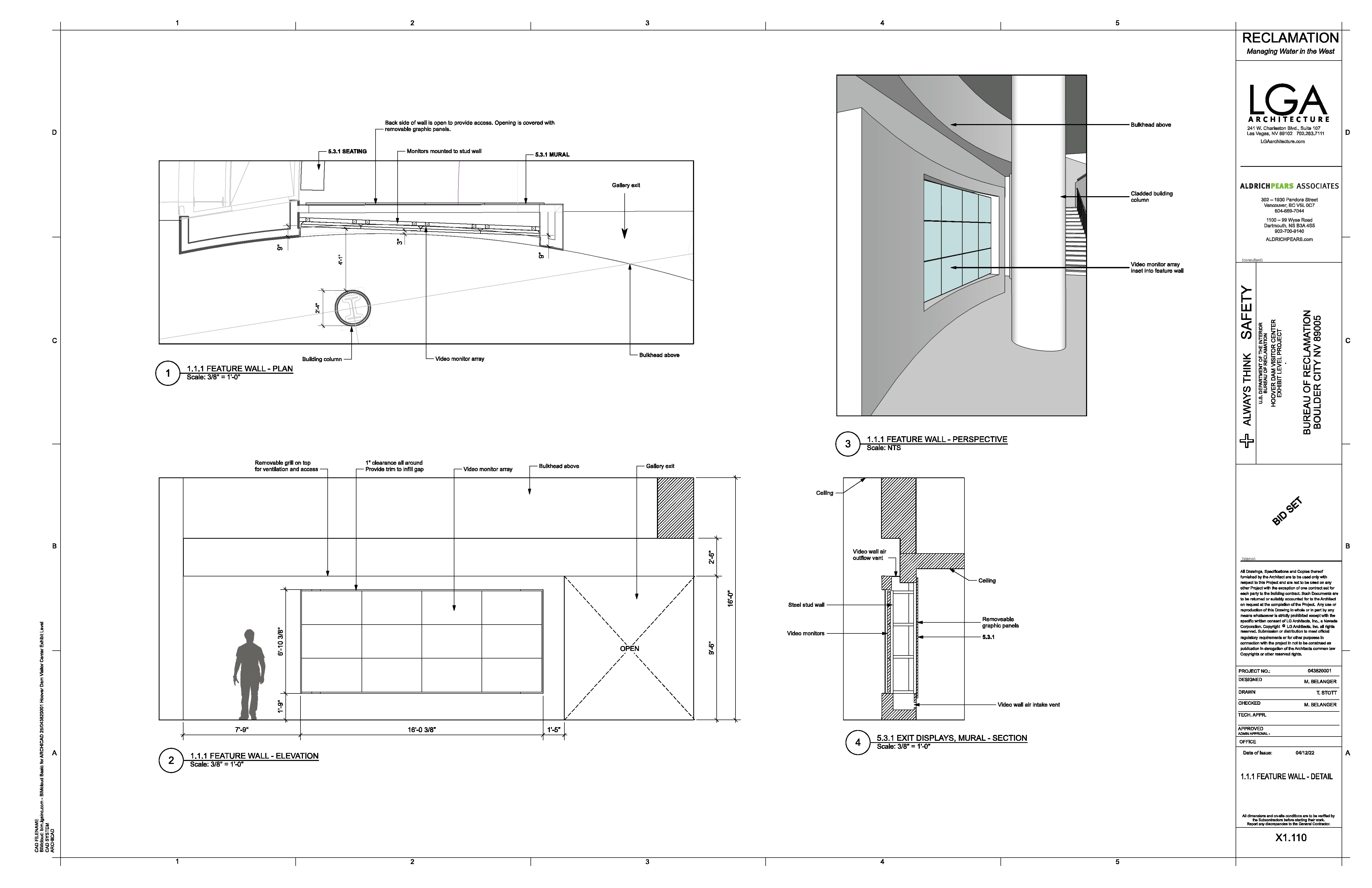
Large 4x3 video wall looping ambient content.
📦 Equipment
| Device | Model | Quantity | Location |
|---|---|---|---|
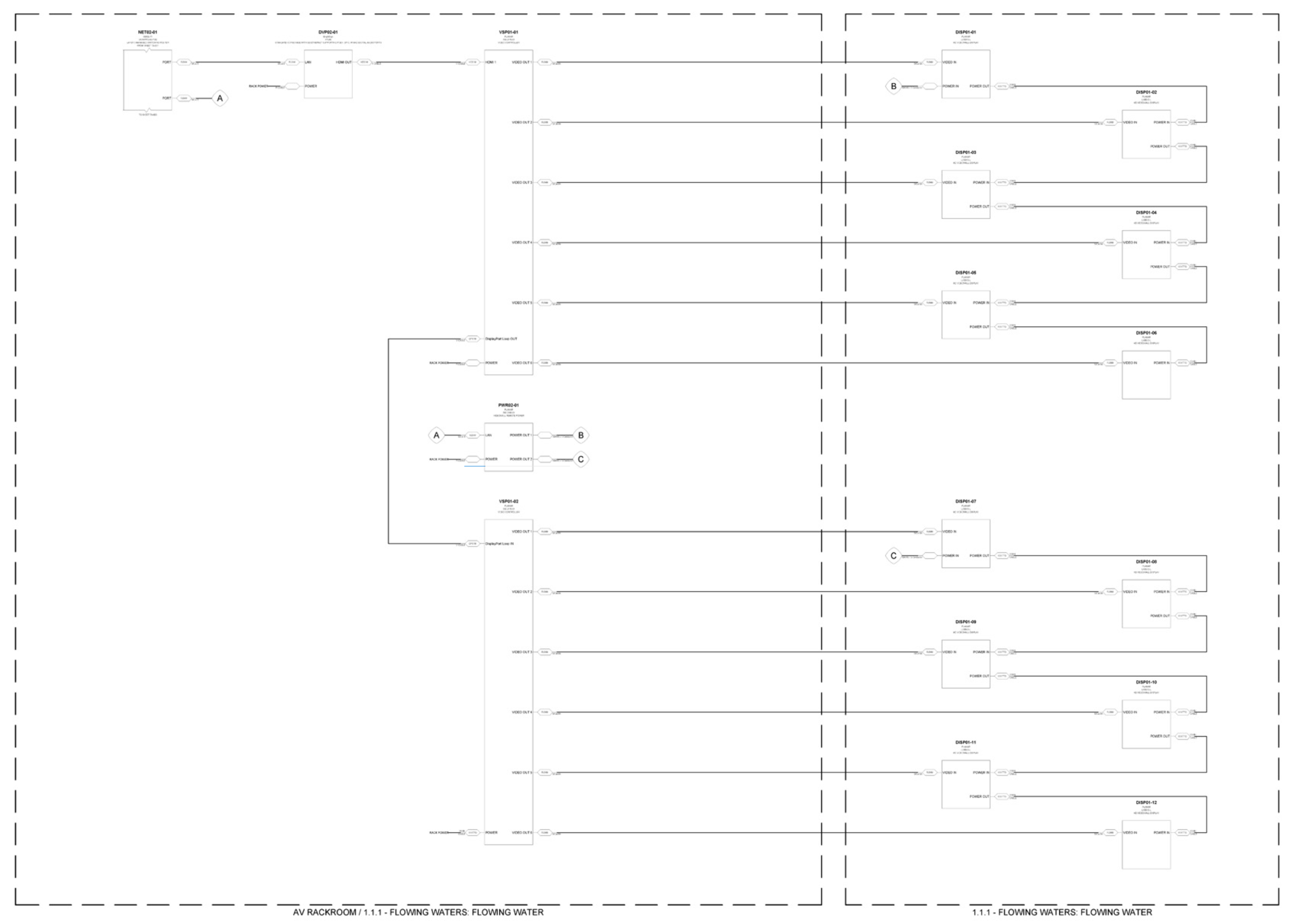
| BrightSign Player | XT245 | 1 | MDF Rack |
| Planar Display | LX55X3-L | 12 | Video Wall |
| Planar VC9 Processor | VC9 | 2 | MDF Rack |
🎨 Renders
🔌 Wiring Diagram
🎛️ Controls
🛠️ Operation
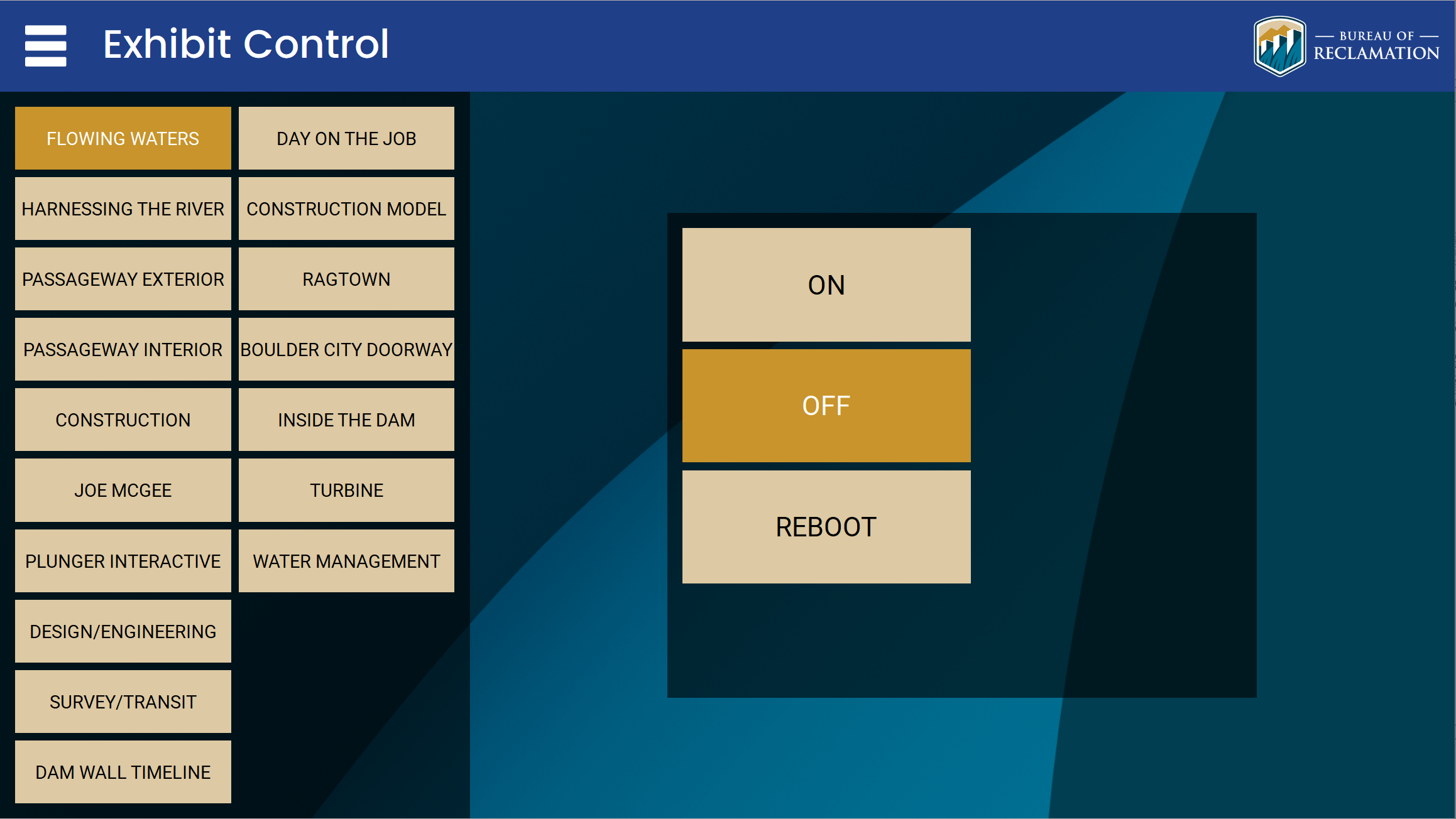
- The system will come on automatically based on a global schedule, or you can override it using the control tablet.
- Adjust volume or reboot using the GUI tablet if necessary.
🧰 Maintenance
- If content fails, reboot the Flowing Waters section from the tablet.
- Check network connections if there is no signal.
⚙️ Configuration
Applications Used
- BrightAuthor - Used to upload and manage looping video content on the BrightSign player.
- Planar WallDirector - Used for configuring the Planar VC9 video wall controller and adjusting wall geometry.
Connection Details
- BrightSign Player (DVP02-01) - http://10.10.0.25
- Planar VC9 (VSP01-01) - http://10.10.0.93
- Planar VC9 (VSP01-02) - Accessible through the VSP01-01 interface
- Planar Displays (DISP01-01 to DISP01-12) - No IP addresses assigned (controlled via VC9).
Updating Media
- Open BrightAuthor and add the BrightSign - http://10.10.0.25
- Upload new content or schedule playback using BrightAuthor.
Adjusting Wall Geometry
- Launch Planar WallDirector.
- Connect to VC9 at http://10.10.0.93
- Adjust display alignment, bezels, or other video wall settings.
🔧 Troubleshooting
At startup the wall shows a logo, then the screens go dark with no content
Why
The source content feed or input routing was not ready when the wall powered on. This is a startup timing issue, not failed hardware.
Do this
- Reboot Flowing Waters from the control tablet, or power the section off and back on.
- Allow the wall a full minute to start before judging the result.
- If the screens are still dark, reboot a second time. Two reboots have historically restored content.
Still stuck
If content does not return after two reboots, or the wall comes up dark every morning, note the time of day and contact support.
Flowing Waters does not turn on or off at its scheduled times, even though the tablet shows the correct state
Why
Flowing Waters runs an extended schedule (7:00 AM to 9:00 PM) that is separate from the other galleries (7:00 AM to 6:00 PM). A conflict between the system-wide power event and the Flowing Waters schedule could leave the wall showing on in software while the hardware stayed off. The control code was corrected so the system-wide power command no longer touches Flowing Waters.
Do this
- Note the time and whether it failed to turn on (morning) or off (evening).
- Confirm what the tablet shows versus what the wall is actually doing.
- Report it to KMI. Adjusting the schedule logic is a remote change to the Q-SYS design.
Still stuck
Report any recurrence; there is no on-site fix for the schedule logic.
If the first action does not resolve it, contact the KMI AV support team: Brian Alexander, 214-799-1850, Brian.Alexander@OnyxIntegrations.com.