Appearance
5.1.1 Inside The Dam
📝 Summary
An interactive station with pushbuttons and lighting illustrates the inner workings of the dam. Visitors press buttons at the station to drive lighting effects along an LED strip.
📦 Equipment
| Device | Model | Quantity | Location |
|---|---|---|---|
| Media Computer | Intel TBD | 1 | MDF Rack |
| Pushbutton Switch | AV1-1A211E-R00 | 16 | Exhibit |
| Phidgets SBC | SBC3003_0 | 1 | MDF Rack |
| IP Power Distribution | NP-02B | 1 | MDF Rack |
| Moss LED Strip | I24VRGBW56360UCS8904 | 1 | Exhibit |
| MeanWell Power Supply | HLG-240H-24 | 1 | MDF Rack |
| Madrix LED Controller | Nebula | 1 | MDF Rack |
| Ubiquiti Switch | USW-Flex-Mini | 1 | MDF Rack |
🎨 Renders
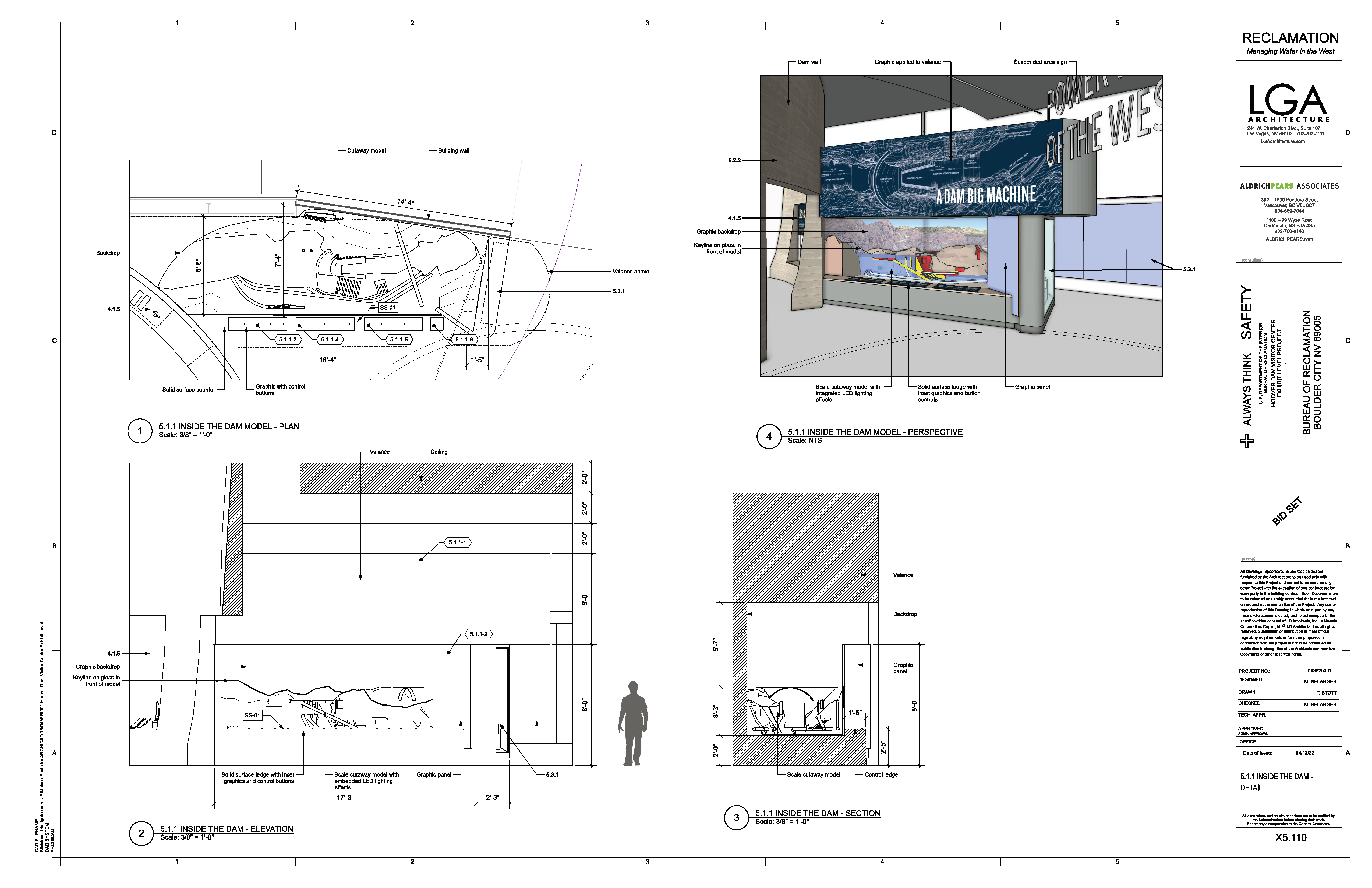
🎛️ Controls
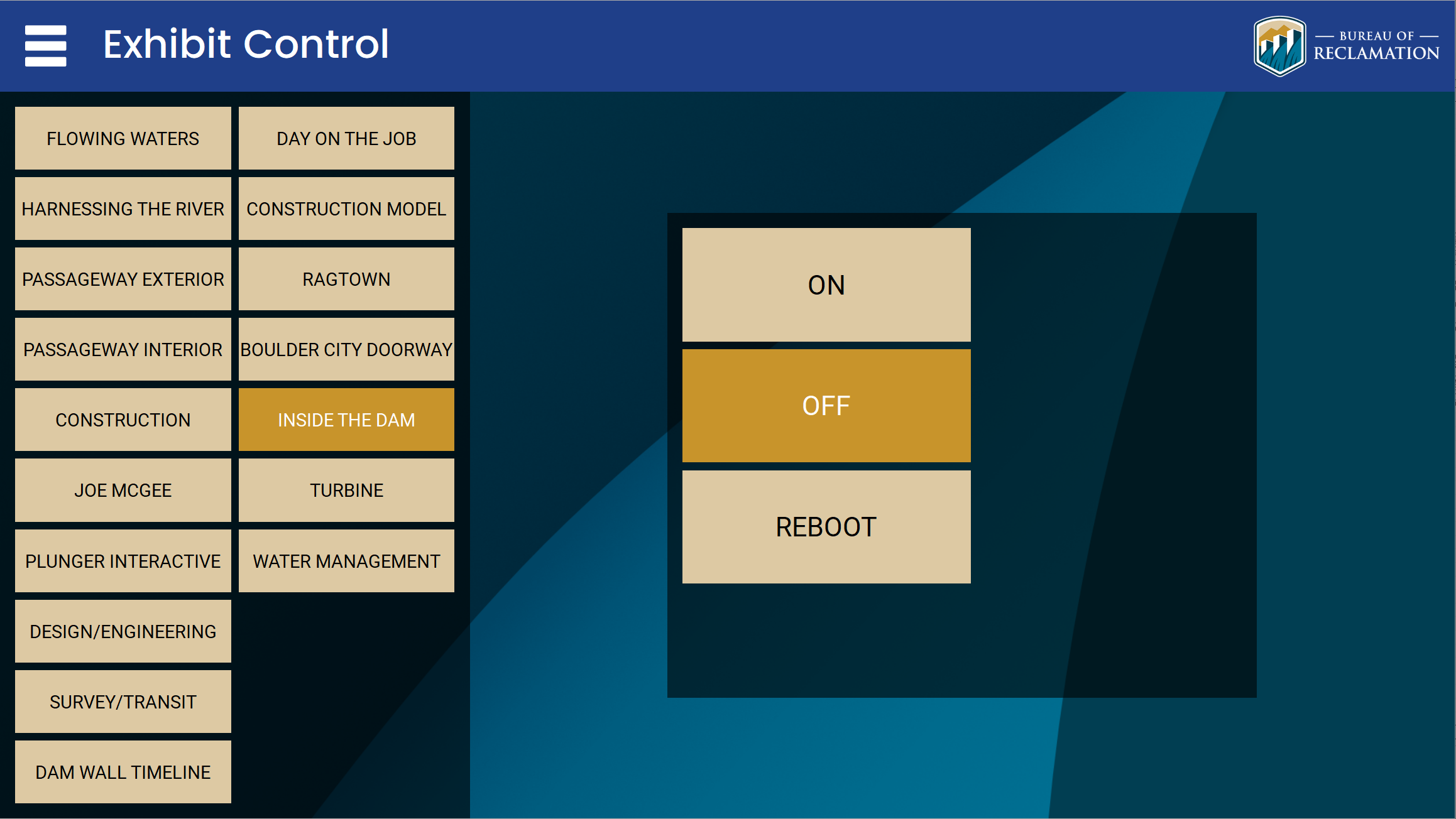
🛠️ Operation
- The system comes on automatically on the global schedule (7:00 AM to 6:00 PM), or you can override it from the control tablet.
- A visitor presses one of the 16 pushbuttons at the station.
- The button input is read by the Phidget SBC and drives a lighting effect along the Moss LED strip through the Madrix Nebula controller.
- Confirm each button produces its lighting response and that the strip returns to its idle state afterward.
🧰 Maintenance
- Test each of the 16 pushbuttons for a clean press and a matching lighting response. Note any button that does not respond.
- Inspect the Moss LED strip for dark or miscolored segments, and reseat or recalibrate through Madrix if needed.
- Confirm the MeanWell power supply and the Synaccess PDU are powered.
- If lighting effects stop, power-cycle the exhibit source from the tablet and allow it to reinitialize.
⚙️ Configuration
Applications Used
- Madrix Nebula UI - Used to configure and calibrate the Moss LED strip lighting effects.
- Synaccess netBooter web UI - Used to power-cycle the exhibit devices through the NP-02B IP PDU.
- Phidget control panel - Used to verify the SBC3003 single-board computer and the pushbutton inputs.
The exhibit lighting is driven by the Madrix Nebula controller and the Moss LED strip. (Some older network records associate CueServer controllers with this exhibit; those serve other systems.)
🔧 Troubleshooting
A pushbutton does not produce its lighting response
Why
Usually the exhibit source needs a restart, or a single button or LED segment has a fault. The Phidget SBC reads the buttons and drives the LED strip.
Do this
- Test each of the 16 buttons for a clean press and note any that do not respond.
- Inspect the LED strip for dark or miscolored segments.
- If lighting effects have stopped, power-cycle the exhibit source from the control tablet and allow it to reinitialize.
Still stuck
If a button or LED segment stays faulty after a restart, report the specific position.
If the first action does not resolve it, contact the KMI AV support team: Brian Alexander, 214-799-1850, Brian.Alexander@OnyxIntegrations.com.