Appearance
4.2.4 Construction Model
📝 Summary
Touchscreen interactives let visitors explore the construction sequencing and details of the dam scale model.
📦 Equipment
| Device | Model | Quantity | Location |
|---|---|---|---|
| Elo Touchscreen Computer | E606511 (15") | 2 | Exhibit |
| Compulocks Enclosure Rail Mount | iPad Enclosure Rail Mount | 2 | Exhibit |
The installed interactives are the two Elo E606511 touchscreens (TSC01-01 and TSC01-02) at 10.10.0.100 and 10.10.0.101. The original AV equipment list specified iPad Pro units; the Elo touchscreens superseded them as built.
🎨 Renders
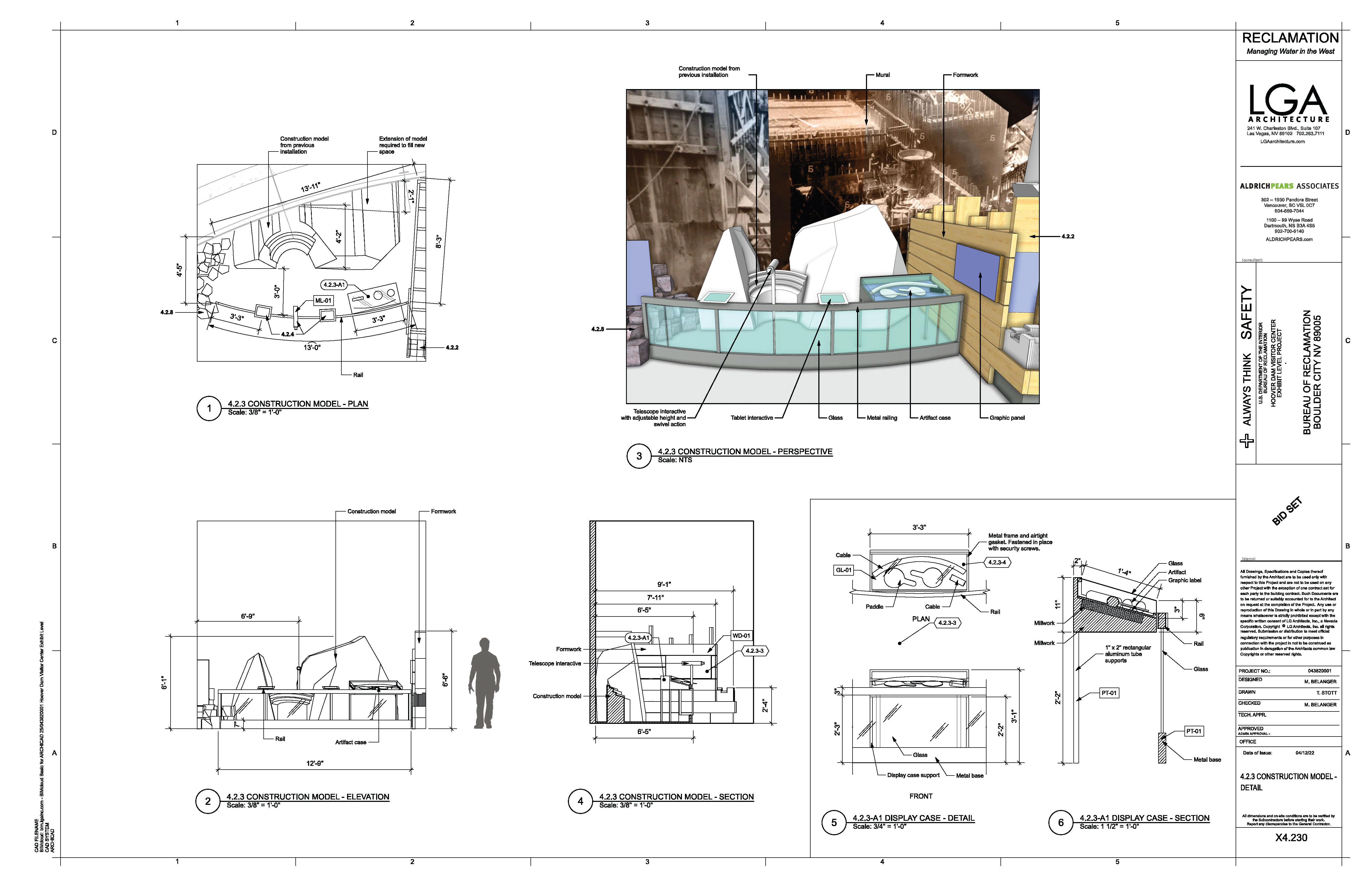
System render showing the two touchscreen stations at the construction model.
🔌 Wiring Diagram

Signal and power wiring: each touchscreen on a network drop and rail-mount enclosure at the model.
🎛️ Controls
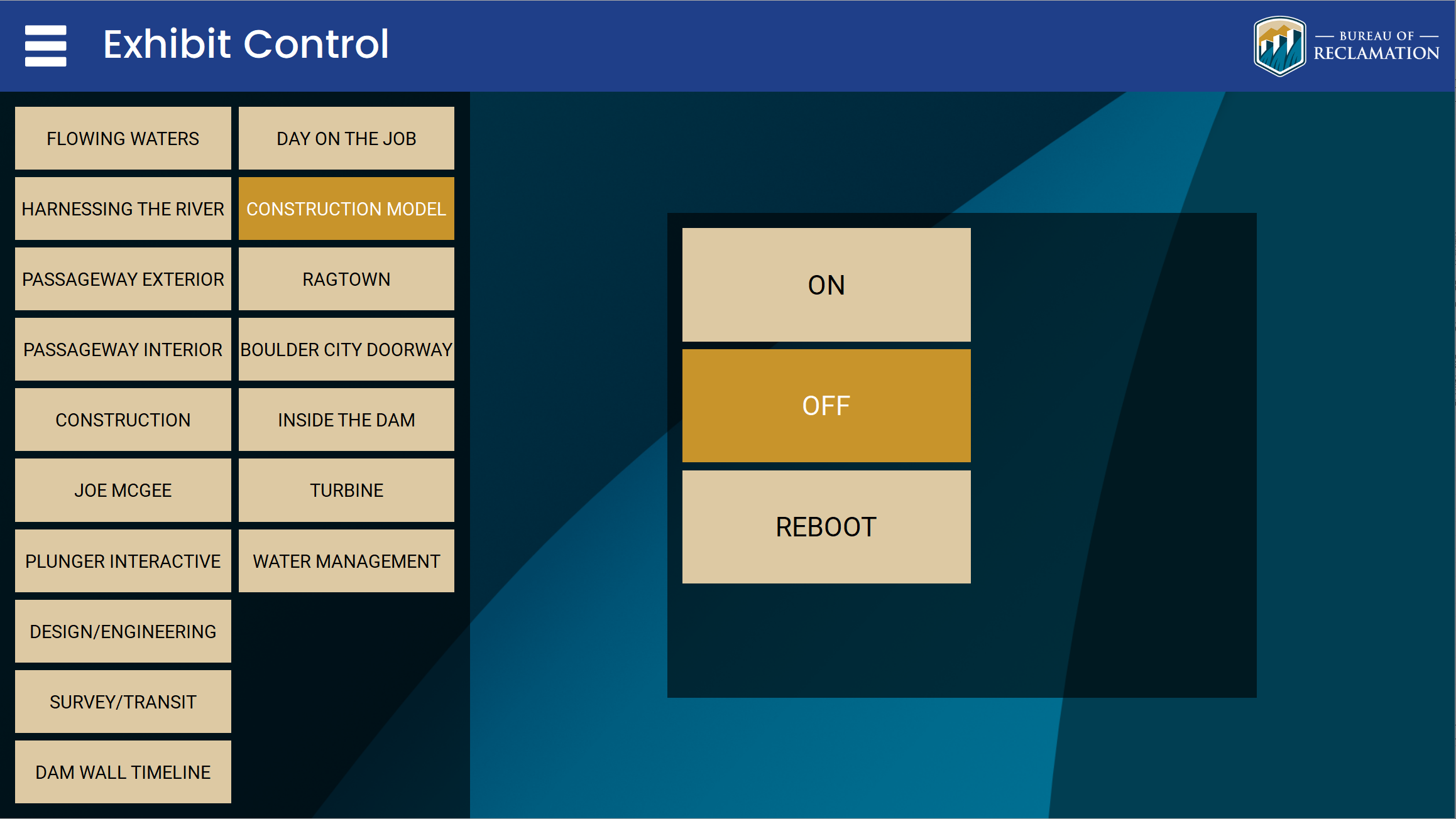
Power on/off and reboot are handled through the control tablet and the Q-SYS/Ottomater show controller. Ottomater cues for this exhibit: ON 111, OFF 112, reboot 113.
🛠️ Operation
- The exhibit powers on automatically with the global schedule (7:00 AM to 6:00 PM) or can be overridden from the control tablet.
- Confirm both touchscreens are on and running the interactive in kiosk/guided-access mode.
- Verify touch response and that the interactive resets to its attract screen between users.
- To restart, reboot the exhibit from the control tablet (Ottomater reboot cue 113).
🧰 Maintenance
- Clean the touch surfaces and confirm the rail-mount enclosures are secure.
- Confirm both units are on the network and reachable (10.10.0.100 and 10.10.0.101).
- Restart the interactive app or power-cycle a unit that stops responding.
⚙️ Configuration
Applications Used
- EloView (Elo device management): remote configuration, content deployment, and kiosk lockdown for the E606511 units.
- Q-SYS Designer / Ottomater: scheduling and power cues (ON 111, OFF 112, reboot 113).
Connection Details
- Elo Touchscreen (TSC01-02): http://10.10.0.100
- Elo Touchscreen (TSC01-01): http://10.10.0.101
Updating Media
- In EloView (or on the device), open the deployed interactive/kiosk app.
- Replace or update the construction-model content package.
- Push the update to both units and confirm each restarts to the updated interactive.
🔧 Troubleshooting
A touchscreen is unresponsive or does not return to its attract screen10.10.0.100 / 10.10.0.101
Why
The interactive app or the touchscreen unit needs a restart. Both units are on the network at 10.10.0.100 and 10.10.0.101.
Do this
- Confirm both units are powered and on the network.
- Reboot the exhibit from the control tablet (Ottomater reboot cue 113), or power-cycle the affected unit, and allow it to restart to the interactive.
Still stuck
If a unit does not recover after one restart, contact support.
If the first action does not resolve it, contact the KMI AV support team: Brian Alexander, 214-799-1850, Brian.Alexander@OnyxIntegrations.com.