Appearance
4.2.5 Dam Wall Timeline
📝 Summary
A four-channel edge-blended projection spans the dam-wall timeline, driven by a 7thSense media server with synchronized playback across four laser projectors.
📦 Equipment
| Device | Model | Quantity | Location |
|---|---|---|---|
| Epson Laser Projector | EB-PU1008B | 4 | Ceiling |
| Epson Short Throw Lens | ELPLU03S | 4 | On Projectors |
| Peerless Ceiling Plate | CMJ310 | 4 | Ceiling |
| Peerless Extension Column | AEC009012 | 4 | Ceiling |
| Peerless Projector Mount | PJR125 | 4 | Ceiling |
| IDK HDBaseT Transmitter | HDC-S01U-T | 4 | MDF Rack |
| 7thSense Media Server | Proton-4-450-8U | 1 | MDF Rack |
| Ubiquiti Camera | UVC-G3-BULLET | 1 | Area |
🎨 Renders
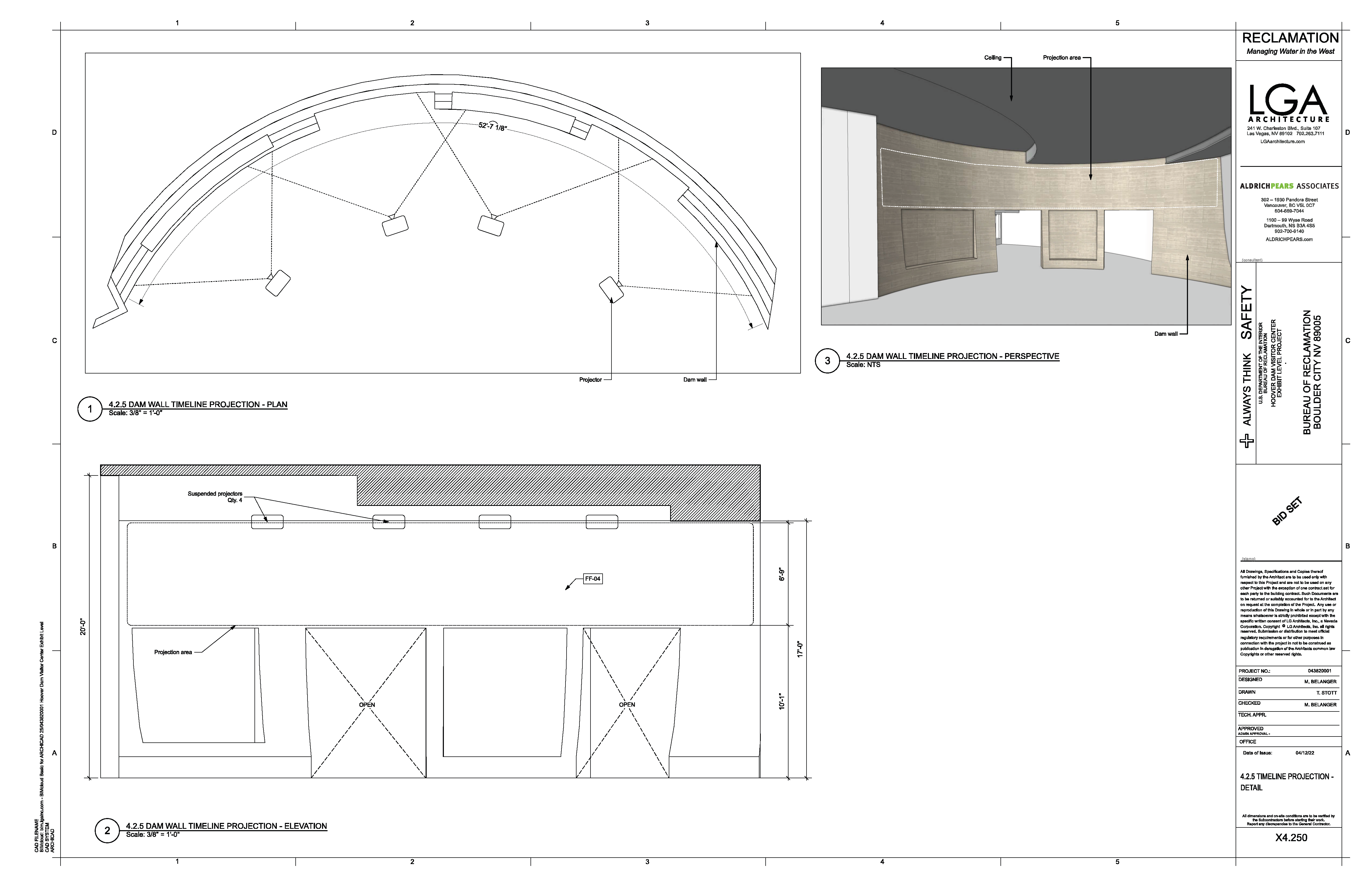
System render showing the four-projector blend across the timeline wall.
🔌 Wiring Diagram

Signal and power wiring: 7thSense server outputs to IDK HDBaseT transmitters, extended to the four ceiling projectors.
🎛️ Controls
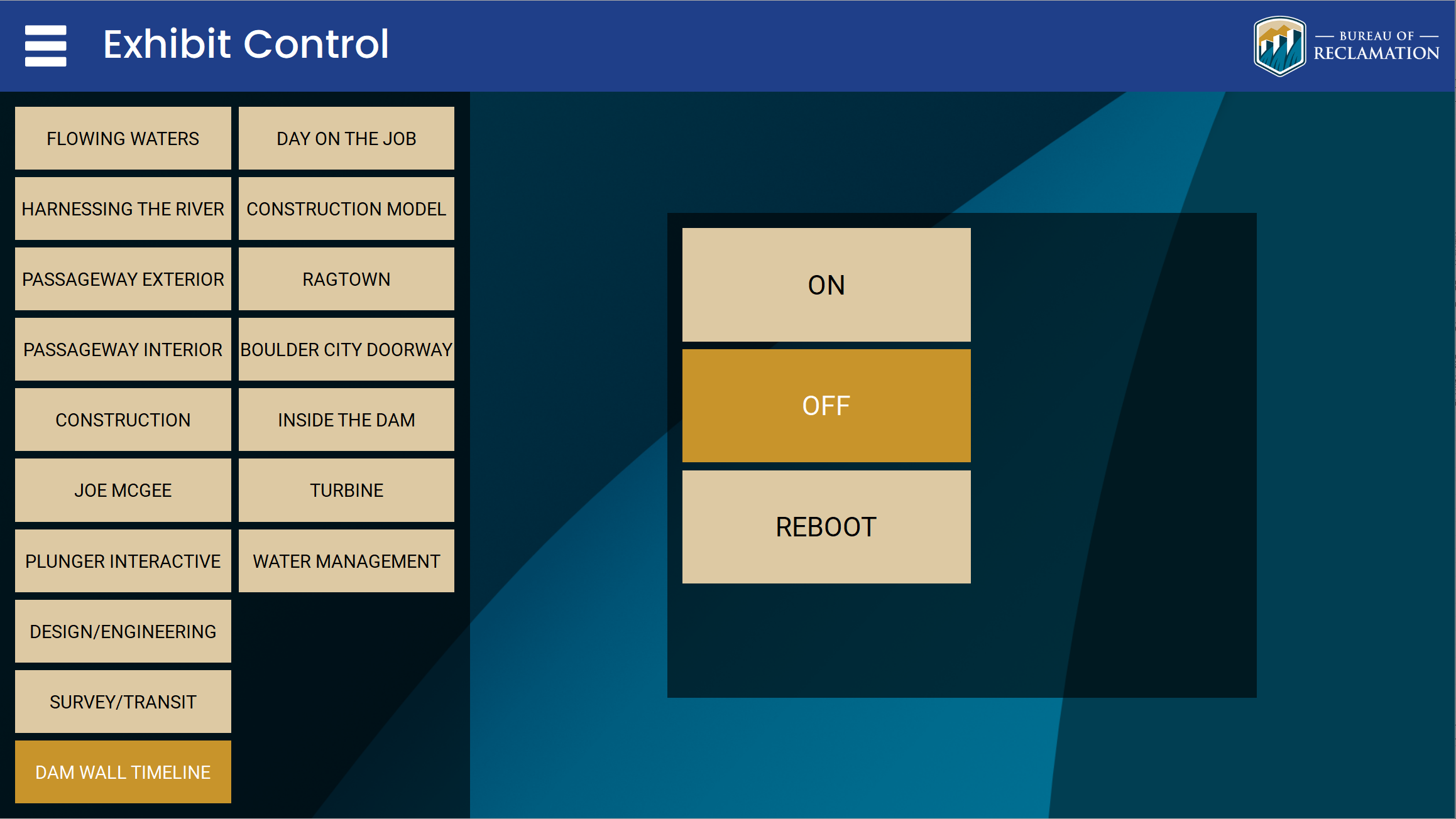
Power on/off and reboot are handled through the control tablet and the Q-SYS/Ottomater show controller. Ottomater cues for this exhibit: ON 91, OFF 92, reboot 93.
🛠️ Operation
- The exhibit powers on automatically with the global schedule (7:00 AM to 6:00 PM) or can be overridden from the control tablet.
- Confirm all four projectors show video and the blended image is aligned across the wall.
- Verify the 7thSense Delta server is playing the timeline show in sync.
- Use the area camera for a live view of the exhibit if remote confirmation is needed.
- To restart, reboot the exhibit from the control tablet (Ottomater reboot cue 93).
🧰 Maintenance
- Check the Epson filters and temperature and confirm there are no projector warnings via Epson Web Control or PJLink (TCP 4352).
- Confirm all four HDBaseT links are stable.
- Verify the 7thSense server is online and the show timeline is running; restart the Delta show if playback stalls.
- Confirm the warp and edge-blend alignment has not drifted across the four channels.
⚙️ Configuration
Applications Used
- 7thSense Delta (Delta media server software) / Delta Web Service: show playback, media management, warp and edge-blend.
- Epson Web Control / Projector Management: power, lens and geometry, and status.
- PJLink (TCP 4352): projector power, laser hours, and shutter monitoring.
- IDK HDC-S01U web UI: HDBaseT transmitter status.
- Q-SYS Designer / Ottomater: scheduling and power cues (ON 91, OFF 92, reboot 93).
Connection Details
- Epson Projector (PRJ01-05): http://10.10.0.80
- Epson Projector (PRJ01-06): http://10.10.0.81
- Epson Projector (PRJ01-07): http://10.10.0.82
- Epson Projector (PRJ01-08): http://10.10.0.83
- 7thSense Media Server (DVP06-01), LAN A: http://10.10.0.84
- 7thSense Media Server (DVP06-01), LAN B: http://10.10.0.254
Note: this exhibit uses a single dual-NIC 7thSense server (DVP06-01) reachable on both 10.10.0.84 (LAN A) and 10.10.0.254 (LAN B), not two separate servers. The address 10.10.0.72 is a separate BrightSign player (DVP07-01) and is not part of this exhibit.
Updating Media
- Open 7thSense Delta Web Service on the DVP06-01 server (http://10.10.0.84 or http://10.10.0.254).
- Import or replace the timeline media and update the show timeline.
- Save the show and confirm synchronized playback across all four projectors.
Adjusting Projection Geometry
- In 7thSense Delta, adjust warp and edge-blend for each of the four channels so the image aligns across the wall.
- Use Epson Web Control lens shift, focus, and geometry correction on each projector as needed (http://10.10.0.80 through http://10.10.0.83).
- Match brightness and color between projectors, then save both the Delta show and the projector settings.
🔧 Troubleshooting
The projectors are dark or show no content while the media server is online
Why
In the confirmed case the 7thSense media server had a software licensing issue that prevented playback. The server was online but could not output content, so the projectors had nothing to show.
Do this
- Do not leave the projectors running on a blank canvas for a long period.
- If content is clearly not coming and the projectors are showing black, report it promptly.
Still stuck
Contact support. Restoring playback requires working with 7thSense support on the license, and the projectors can be shuttered to protect them while that is resolved. This is a vendor licensing matter, not a site-tech fix.
If the first action does not resolve it, contact the KMI AV support team: Brian Alexander, 214-799-1850, Brian.Alexander@OnyxIntegrations.com.